It’s been just over a month since I started my first complete open-source project. It has picked up 50+ stars and 6 issues, and it’s been a new experience for me. I’ve had some time this month to keep making improvements, and the project is now at v1.5.6. In this post, I’ll go through a few of the updates I’ve been working on recently.
Keep multiple historical backups
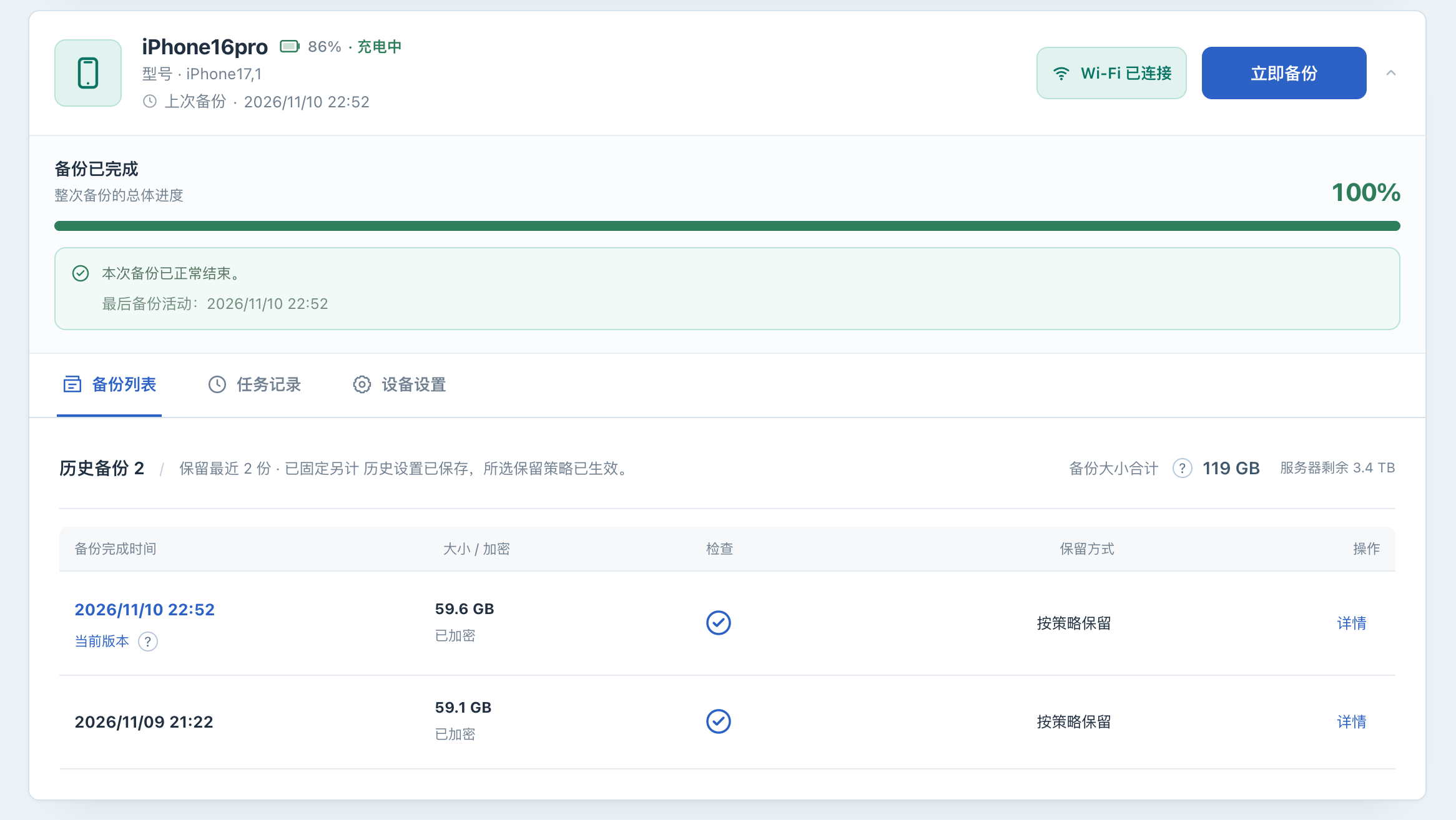
By default, each backup overwrites and updates the same set of data. You can now enable history retention for each device (issue #14) and choose how many of the most recent successful backups to keep. If you want to save a backup from an important point in time, you can also pin it manually to prevent it from being cleaned up automatically.
With this feature enabled, each backup runs in its own directory. That way, even if a backup fails partway through or you stop it manually, it won’t damage the backups you’ve already saved.
This feature is off by default, so you’ll need to enable it in the device settings. It keeps 2 backups by default, and you can adjust that as needed. Keeping extra backups does take up quite a bit of space, though, especially if you’re running this on a NAS long-term, so set the retention count according to your available disk capacity.
You can also now download a saved historical backup as a complete .tar archive. The original directory structure and encryption state are preserved, making it easier to copy the backup elsewhere for cold storage. I’ve also added instructions to the documentation for restoring backups with Finder on a Mac or Apple Devices on Windows.
View backups while the phone is offline
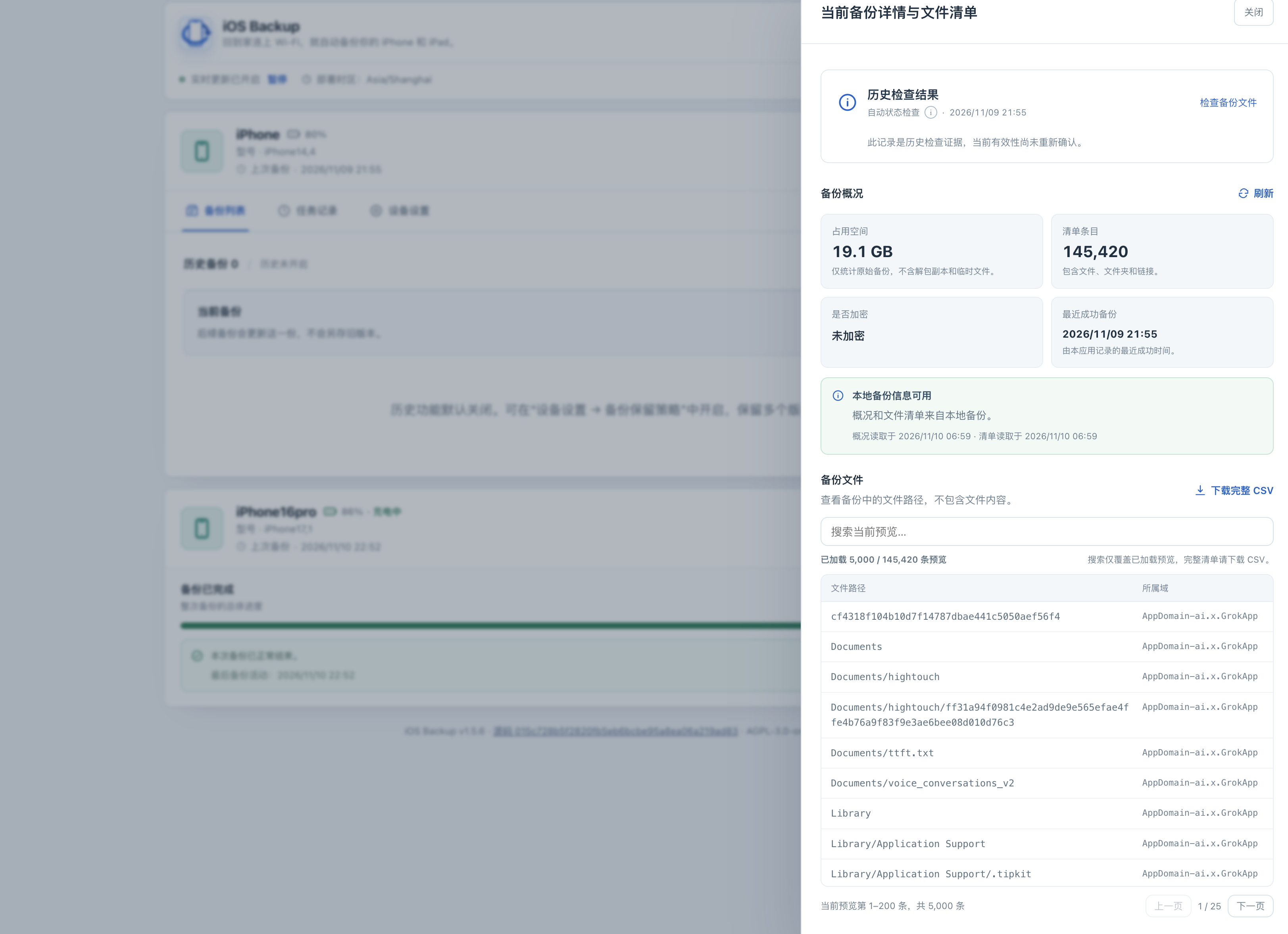
Previously, the app checked whether your phone was online before showing backup details, so you couldn’t view them once the phone went offline (issue #16). Now, as long as the backup data is on your server or NAS, you can view the backup overview directly. For unencrypted backups, you can also browse and search the file listing in the web interface, or export it as a CSV.
This is mainly for viewing the file listing; it doesn’t yet let you open individual photos or files from a backup directly in the browser. Also, file listings are not available for encrypted backups (issue #15).
Stop backups manually
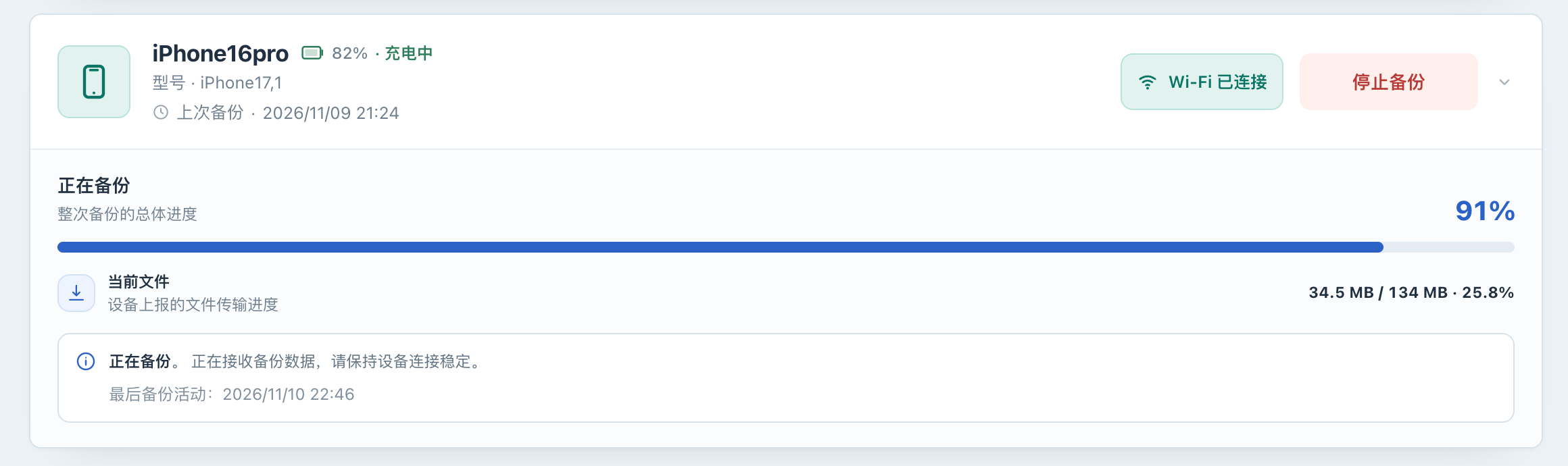
Previously, it was hard to intervene once a backup had started. You can now manually stop a running task (issue #17).
Clicking Stop also pauses automatic backups for that device, so the scheduler won’t start another backup right after you’ve stopped one. This paused state survives restarts. When you want to resume automatic backups, you can do so with a click in the web interface.
Task history and a few smaller improvements
The web interface is now organized into three sections: Backups, Task History, and Device Settings. The new Task History section records how each backup ran and the check results. It also supports filtering and exporting logs, which should make troubleshooting much easier.
I’ve also made a few smaller improvements to the experience:
- Filled in the missing Chinese and English translations for the interface and notifications.
- Improved notification behavior: brief phone disconnections and occasional pairing check failures no longer trigger repeated alerts, and notifications sent after a backup finishes are now consolidated.
- Added support for setting a custom time zone through the
TZenvironment variable, so people deploying in different time zones can keep the times shown in the interface and their automatic backup windows aligned.

Finally, thank you to everyone who has starred the project, opened issues, and shared feedback on how it’s working for you. Many of these features have gradually come together through that feedback. If you run into problems or have new ideas, please keep opening issues on GitHub. It would be even better to have others interested in sending PRs and helping develop and improve the project!
Project: razeencheng/iosbackup
Full release notes: v1.5.5 · v1.5.6
You’re also welcome to leave a comment below or join the Telegram group to chat.